Fingerprint mouse registration manual
NVR fingerprint-mouse authentication and user manual 
User 
Set up NVR users and grant permissions.
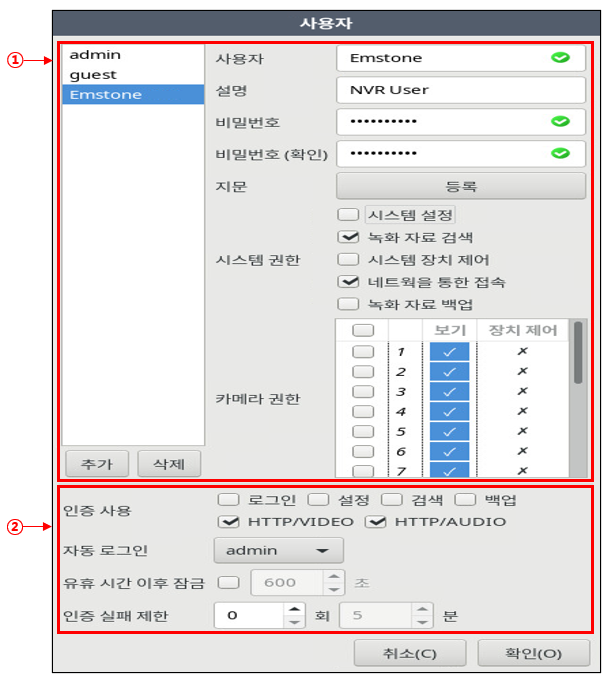
Registering and authorizing users
Register an NVR user.
- Add (User)
Adds an NVR user account. - User
A unique value for the user, by which individual users are distinguished in the system. - Description
Information about the user; it does not have to be entered. - Password
The password that authenticates the user. It is stored encrypted, and because it is one-way encryption, the information cannot be extracted in reverse. - Password verify
The password you enter once more for confirmation; if it differs from the entered password, an error message is shown and the password is not changed.

-
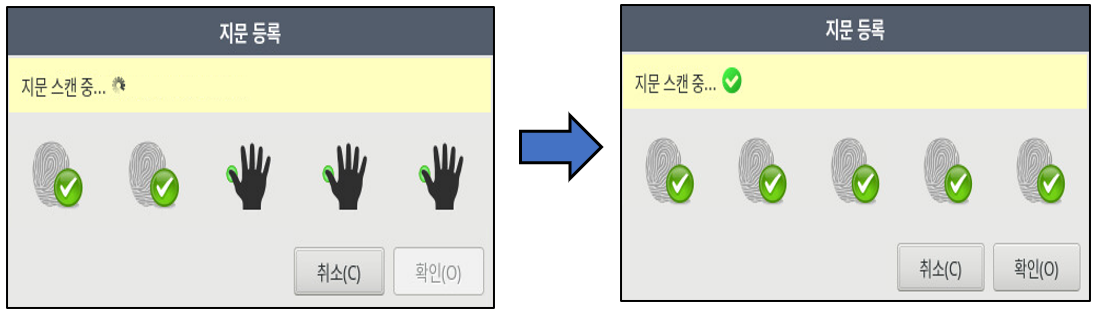
Fingerprint Enroll
Using a fingerprint mouse, you can register a user's fingerprint to the account for easy login and to conveniently prevent unauthorized people—other than registered administrators—from viewing video, backing up video, changing the system configuration, and so on.
-
System Authority
Decides whether to grant the corresponding setting's permission to the account currently being registered.-
Configure system
Decides whether the system settings can be changed. -
Search recording data
Decides whether search and backup are allowed. -
Control system devices
Decides whether system devices (power off, forced recording...) and digital input/output, etc. can be controlled. -
Connect via network
Decides whether connection via network is allowed. -
Access to network file sharing
Decides the data backup permission.
-
-
Camera Authority
Decides whether to grant the account currently being registered viewing and device-control permissions according to the camera channel number. Note that Camera 1 is the camera's name. The bottom row and the rightmost column are row-by-row/column-by-column select-all, and the one at the bottom right is a checkbox for select-all/deselect-all. -
User Login Advanced option
-
Use authentication: If you check this menu, user login authentication is required when using it.
-
Auto login: Selects the account that logs in automatically when the NVR boots.
-
Lock after idle time: Specifies the time to lock when not used by any program.
-
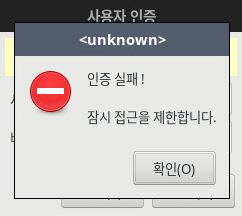
Authentication failure limit: Sets how many minutes access is restricted per number of login authentication failures. On login failure, access is restricted as follows.
-
CMS fingerprint-mouse authentication and user manual 
Running user settings 
Right-click the host management window -> Tools -> Settings
Registering and authorizing users
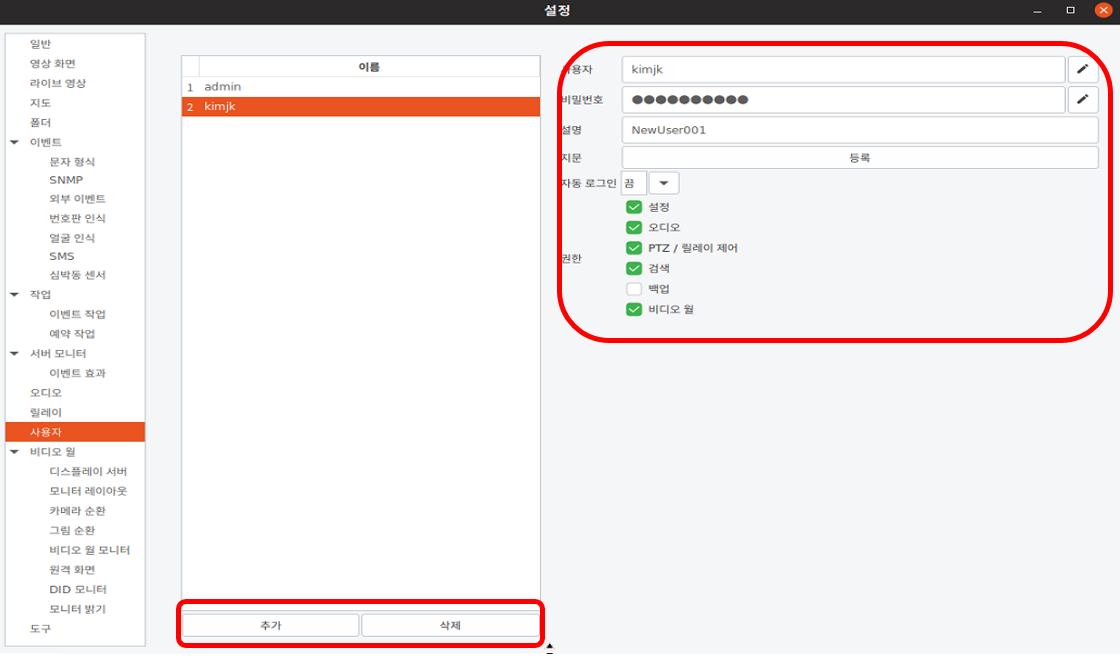
Register CMS users and grant permissions.
-
Add (User) Adds an NVR user account.
-
User A unique value for the user, by which individual users are distinguished in the system.
-
Password verify The password you enter once more for confirmation; if it differs from the entered password, an error message is shown and the password is not changed.

System Authority — Decides whether to grant the corresponding setting's permission to the account currently being registered.
-
Configure system Decides whether the system settings can be changed.
-
Audio Decides whether the camera's audio is used.
-
PTZ / Relay Control Decides whether system devices (digital input/output) and PTZ, etc. can be controlled.
-
Search recording data Decides whether to grant permission to search the camera's stored data.
-
Access to network file sharing Decides whether to grant permission to back up the camera's stored data.
-
Video Wall Decides whether to grant permission for the video wall.
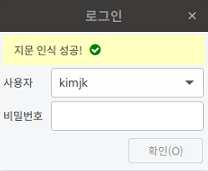
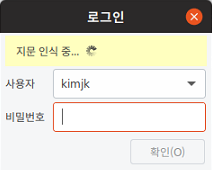
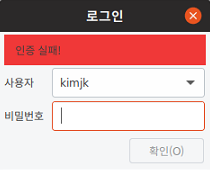
• Fingerprint Login 
When running CMS, log in using a fingerprint.